
So far, you have mainly worked with numeric values. In this section, we focus on text values, called strings.
Strings behave fundamentally differently from numbers. By isolating their special behaviour here, we avoid confusion later when data processing becomes more complex. After this section, you will be able to safely combine, clean, and prepare text for output.
1. What Is a String?
A string is a sequence of characters enclosed in quotation marks. Strings represent text values, not numbers. Even if they contain digits, Python treats them strictly as text.
city = "Kampala"
elevation = "1190"  # This is text, not a number!
Strings are commonly used in spatial data for:
names (cities, countries)
labels (chart titles)
categories (land cover types)
identifiers (station IDs)
Creating Strings
Strings can be created using single quotes or double quotes. Both forms are valid and behave exactly the same way in Python.
country1 = "Uganda"
country2 = "Uganda"
The choice usually depends on readability or whether the text itself contains quotation marks (which we will cover below).
2. String Concatenation (+)
Strings can be combined using the plus operator +. This operation is called concatenation. It creates a new string by joining the text parts together end-to-end.
city = "Kampala"
country = "Uganda"

# Notice we have to manually add the comma and space!
location = city + ", " + country
print(location)
Concatenation is heavily used to build labels, file paths, or formatted output from smaller pieces of text.
Strings vs Numbers
The + operator does not mean the same thing for all data types.
# Math: Adds numbers
print(2 + 3)  # Output: 5

# Concatenation: Joins text
print("2" + "3")  # Output: 23
The symbol is the same, but the behaviour depends entirely on the data type.
3. String Repetition (*)
Strings can be repeated using the multiplication operator *.
print("-" * 20)
print("Data Summary")
print("-" * 20)
This creates a new string where the original text is repeated exactly that many times. It is often used for creating visual separators in printed output or making headings more readable in your notebook.
Note: Repetition only works when multiplying a string by an integer. Multiplying two strings together ("A" * "B") or multiplying by a decimal ("A" * 2.5) is mathematically undefined and will raise an error.
4. Mixing Strings and Numbers
Strings and numbers are not automatically compatible in Python. If you try to concatenate them directly, Python will crash.
# This will raise a TypeError!
"Distance: " + 10
Python refuses to guess whether you want to do math or join text.
Explicit Conversion with str()
To combine strings and numbers safely, you must explicitly convert the number into a string first using the str() function.
distance = 10
message = "Distance: " + str(distance) + " km"
print(message)
This forces you to be explicit about how values should be represented as text, preventing subtle errors in your data pipelines.
5. Escape Characters
Sometimes you need to include special characters inside your strings, like quotation marks or new lines.
For example, if you use single quotes to define a string that contains an apostrophe, Python gets confused about where the string actually ends:
# ERROR: Python thinks the string ends after "It"
weather = 'It's cold today'
Escaping Characters (\)
You can “escape” the special meaning of a character by placing a backslash \ in front of it.
weather = "It's cold today"
The backslash tells Python: “Treat the very next character as ordinary text, not as code.”
Common Escape Characters
Escape characters are often used to control layout when printing text:
\': Single quote\": Double quote\n: New line (drops the text down one line)\t: Tab (indents the text)
print("Coordinates:\n\tLat: 0.34\n\tLon: 32.58")
6. Basic String Cleaning
Raw data is rarely perfectly formatted. Before analyzing text, it helps to know two very common string methods.
Splitting Strings with .split()
The .split() method breaks a single string into parts based on a specific separator character (like a comma or a space). It returns a list of strings.
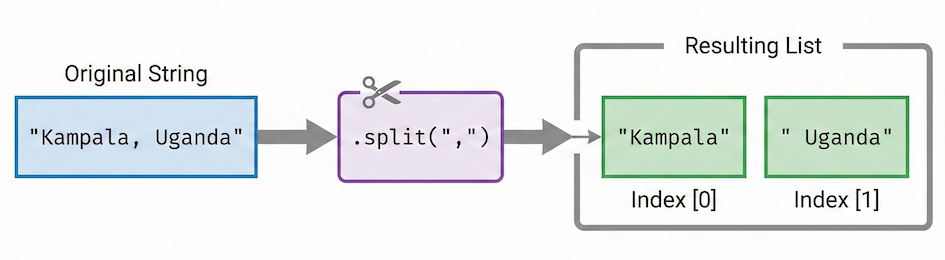
The split() method breaks a single string into a list of multiple strings based on a specific separator character.
Lists store multiple values in a specific order. You can access individual items in that list using their position, starting at zero. This is called indexing.
text = "Kampala,Uganda"

# Split the text at the comma
parts = text.split(",")

print(parts[0])  # The first item (Index 0)
print(parts[1])  # The second item (Index 1)
You will learn much more about lists later. For now, it is enough to know that .split() chops up text, and indexing ([0], [1]) lets you grab the specific pieces you need.
Removing Extra Spaces with .strip()
Often, text imported from files or user input contains unwanted, invisible spaces at the beginning or end. The .strip() method cleans these up.
raw_name = "   African fish eagle    "
clean_name = raw_name.strip()

print(clean_name)  # Output: "African fish eagle"
record = "Species: African fish eagle , Country: Uganda "
Task:
Split the
recordstring at the comma so that you can work with the two halves separately.Extract the actual species name (“African fish eagle”) and the country name (“Uganda”). Hint: You will need to use
.split()again on the halves!Clean both extracted values using
.strip()so there are no extra spaces.Combine the cleaned values into one readable string using concatenation.
If your solution is correct, your final string should look exactly like this:
"Species: African fish eagle, Country: Uganda"
Sample solution (click to expand)
# 1. Split the record into two halves using the comma
parts = record.split(",")

# 2 & 3. Extract and clean the species
species_half = parts[0]                         # "Species:  African fish eagle "
species_name = species_half.split(":")[1]       # "  African fish eagle "
clean_species = species_name.strip()            # "African fish eagle"

# 2 & 3. Extract and clean the country
country_half = parts[1]                         # " Country:  Uganda "
country_name = country_half.split(":")[1]       # "  Uganda "
clean_country = country_name.strip()            # "Uganda"

# 4. Combine into a readable result
summary = "Species: " + clean_species + ", Country: " + clean_country

print(summary)
8. Summary
After completing this section, you should understand that:
Strings represent text values and are written using quotation marks.
The
+operator concatenates (joins) strings.The
*operator repeats strings.Strings and numbers do not mix automatically; you must use
str()to convert numbers to text.Escape characters (like
\n) control how text is interpreted and displayed..split()and.strip()are essential methods to clean and structure messy text data.
Looking Ahead
Next, you will learn how to display results clearly.
In the upcoming section on Printing and Formatting Output, we focus on:
advanced ways to print values to the screen
using modern f-strings to inject variables directly into text
formatting numbers (like rounding decimals) directly inside your print statements