
Chapter Relevance
Lab Relevance: ★★☆ (Specifically required to complete Part 2, Task 2 and properly display the final outputs of your calculations in Part 7.)
Project Relevance: ★★☆ (Essential for fulfilling the “Documentation” assessment criteria by generating readable summary reports in projects 1, 2, 3, and 4.)
Foundation: ★★☆ (Crucial for debugging and understanding code execution at intermediate steps.)
Time to Read: 15 minutes
In a nutshell: Modern f-strings allow you to embed dynamic variables directly into text and format decimals cleanly for professional reporting.
Skip this if: You are already proficient at writing f-strings and can confidently format a floating-point number to two decimal places (e.g., f"{value:.2f}").
So far, you have worked with values, expressions, and strings. In many cases, you have seen that Python already shows results automatically when you run a notebook cell.
In this chapter, you will learn when and why to print values explicitly and how to format output so it is readable, professional, and meaningful.
1. Notebook Output vs print()
In a Jupyter Notebook, the last expression in a code cell is displayed automatically.
2 + 3 # This will display 5 below the cellThis automatic display is highly convenient when you are exploring values interactively. However, it has clear limitations:
It only shows the last expression in a cell.
It only displays one value.
It is a notebook-specific feature (it will not work if you write a standard Python script later).
Using the print() function
The print() function sends output to the screen explicitly.
print(2 + 3)
5
Printing works consistently everywhere: in notebooks, in scripts, and in massive software programs. This makes print() essential for debugging, explaining steps, and clearly communicating your final results.
2. Printing Multiple Values
The print() function can display multiple values at once if you separate them with commas. Python automatically inserts a space between each value.
distance_km = 120
speed_kmh = 80

# Quick inspection of multiple variables
print(distance_km, speed_kmh)
120 80
Output becomes much clearer when you add text labels. Clear labels turn raw numbers into meaningful information, helping your future self (and others) understand what the numbers represent.
print("Distance:", distance_km, "Speed:", speed_kmh)
Distance: 120 Speed: 80
3. Formatting Output with f-strings
While separating items with commas works, modern Python provides a much more powerful tool for readable output: f-strings.
F-strings allow you to embed variable values directly into the middle of a text string.
travel_time_h = distance_km / speed_kmh

print(f"The travel time is {travel_time_h} hours.")
The travel time is 1.5 hours.
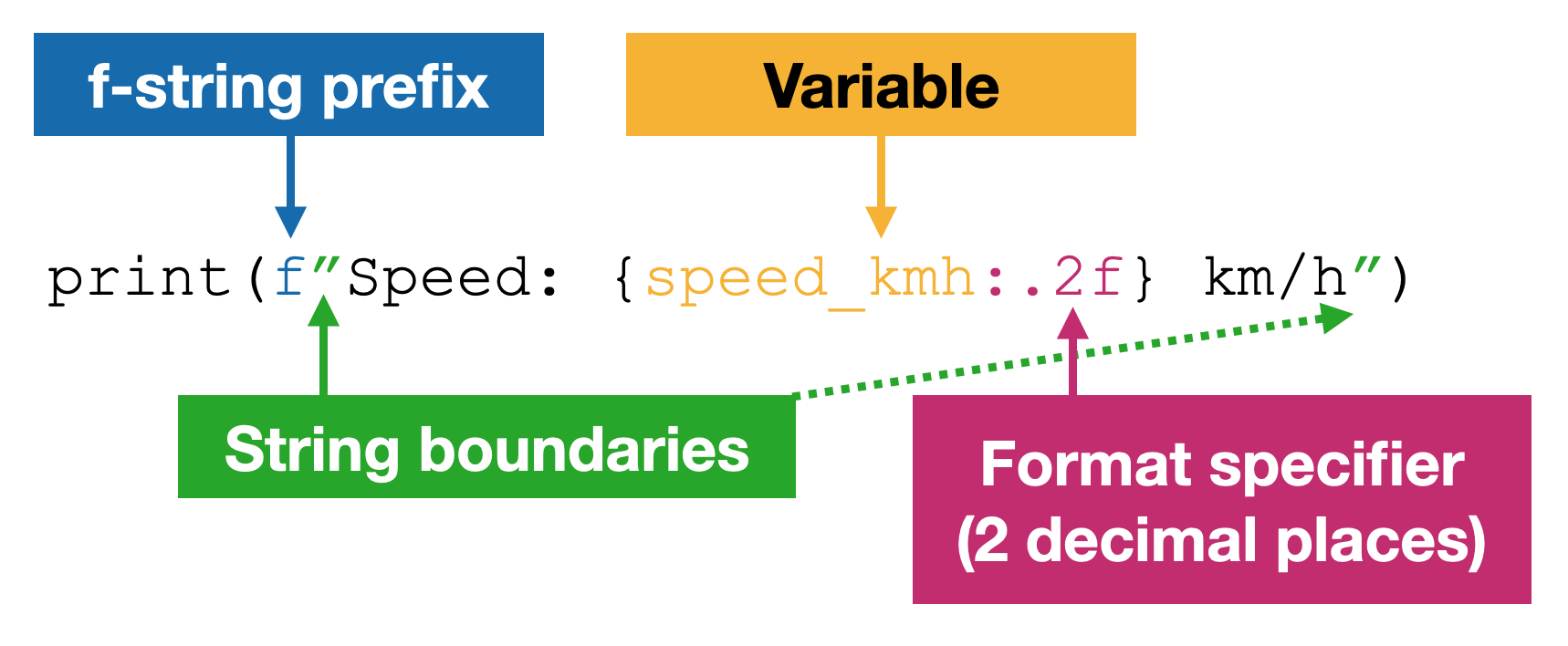
The anatomy of an f-string: combining fixed text, dynamic variables, and formatting rules.
How it works:
The
fbefore the quotation mark tells Python: “This is a formatted string.”The curly braces
{}act as placeholders.Python evaluates whatever is inside the
{}and injects the value directly into the text.
You can even put full mathematical expressions inside the brackets!
print(f"If we double our speed, we will go {speed_kmh * 2} km/h.")
If we double our speed, we will go 160 km/h.
Formatting Numbers
At times, calculations produce long, ugly decimals (e.g., 1.50000000002). You can control how numbers are displayed by adding formatting rules inside the f-string brackets using a colon :.
# Format the variable to show only 2 decimal places
print(f"Travel time: {travel_time_h:.2f} hours")
Travel time: 1.50 hours
The part after the colon :.2f defines the formatting rule:
.2specifies two digits after the decimal point.fformats the value as a standard floating-point number.
Other Common Number Formats
Different format specifiers change how numbers appear:
value = 1.2345

print(f"{value:.2f}")  # decimal format
print(f"{value:.2e}")  # scientific notation
print(f"{value:.2%}")  # percentage

x = 1.2345
y = 5
1.23
1.23e+00
123.45%
| Format | Meaning | What it does | Example f-string | Displayed result |
|---|---|---|---|---|
f | fixed-point decimal (floating point) | Displays the number as a decimal value | f"{x:.2f}" | 1.23 |
e | scientific notation | Displays the number in exponential form | f"{x:.2e}" | 1.23e+00 |
% | percentage | Multiplies the value by 100 and adds % | f"{x:.2%}" | 123.45% |
d | integer (whole numbers only) | Displays a whole number without decimals | f"{y:d}" | 5 |
This affects only the output, not the stored value.
This distinction is essential when presenting results, debugging, or comparing outputs.
Interactive Explorer: F-String Formatting Studio.
Change the numerical value in the input field and select different format specifiers from the dropdown to see how the printed output changes. Notice that while the output screen smoothly rounds decimals, converts to scientific notation, or formats as percentages, the raw number in the Computer Memory remains completely untouched. For improved visibility of the explorer, follow this link.
Concept Check: The Memory Illusion
You are analyzing a temperature sensor dataset and run the following code snippet:
temperature = 14.856
print(f"Current Temp: {temperature:.1f} °C")
The output successfully prints "Current Temp: 14.9 °C". Immediately in the next line, you run temperature * 2. What is the result of that multiplication?
A) 29.8, because the variable was rounded to 14.9 when it was printed.
B) 29.712, because formatting only changes the text display, leaving the raw variable in memory untouched at 14.856.
C) TypeError, because formatting the number turns it into a string permanently.
Check your understanding
Answer: B
Formatting rules (like :.1f) are purely cosmetic; they intercept the value right before it hits the screen and format it for the reader. The underlying variable inside the computer’s memory remains exactly 14.856 unless you explicitly overwrite it (e.g., using temperature = round(temperature, 1)).
4. Why Formatting Matters
Clear output helps you understand what your code is doing, communicate results to stakeholders, and spot mistakes easily. Poorly formatted output forces the reader to guess.
Printing as a Debugging Tool
Printing intermediate values is one of the simplest and most effective debugging techniques in data science. If a complex calculation is giving you the wrong answer, print out the pieces!
print("Distance:", distance_km)
print("Speed:", speed_kmh)
print("Time:", travel_time_h)
Distance: 120
Speed: 80
Time: 1.5
You can also use an f-string to make the output more readable.
print(
    f"Distance = {distance_km} km, Speed = {speed_kmh} km/h, Time = {travel_time_h:.2f} h"
)
Distance = 120 km, Speed = 80 km/h, Time = 1.50 h
This allows you to verify that values are correct at each specific step and quickly identify exactly where the math went wrong.
5. Short Exercise
Many migratory birds travel long distances over several days. To understand such movements, we often estimate travel time from distance and average airspeed.
Assume a migratory bird is flying from Northern Europe to Southern Europe. The estimated migration distance is:
distance_km = 1800
Two possible average airspeeds are:
10 m/s (slower sustained flight)
15 m/s (faster sustained flight)
Task
Convert both airspeeds from m/s to km/h (Hint: multiply by
3.6).Compute the estimated travel time in hours for both speeds.
Display the results using clear, formatted f-strings that:
state the distance and the airspeed used
include correct units
round the final travel time to two decimal places
Add one debug print statement that would help you verify the unit conversion worked correctly.
Sample solution (click to expand)
# Migration distance
distance_km = 1800

# Airspeeds in meters per second
speed_ms_slow = 10
speed_ms_fast = 15

# 1. Convert airspeed from m/s to km/h
speed_kmh_slow = speed_ms_slow * 3.6
speed_kmh_fast = speed_ms_fast * 3.6

# 2. Calculate travel times
time_h_slow = distance_km / speed_kmh_slow
time_h_fast = distance_km / speed_kmh_fast

# 3. Formatted f-string output
print(f"At {speed_ms_slow} m/s, the migration takes {time_h_slow:.2f} hours.")
print(f"At {speed_ms_fast} m/s, the migration takes {time_h_fast:.2f} hours.")

# 4. Debugging output to verify unit conversion
print(f"\nDEBUG -> speeds (km/h): Slow={speed_kmh_slow:.1f}, Fast={speed_kmh_fast:.1f}")
6. Summary
After this chapter, you should understand that:
Notebooks display the last expression automatically, but
print()makes output explicit and works in all Python environments.Multiple values can be printed together by separating them with commas.
f-strings (
f"Text {variable}") are the modern, clean way to embed variables directly into text.Formatting rules (like
:.2f) alter how values visually appear on the screen without changing the underlying stored data.Printing well-labeled outputs is a crucial habit for debugging and communication.
Looking Ahead
You now know how to see and present individual results clearly.
Next, we move on to multi-item variables (Lists and Dictionaries), which allow a single variable to store massive collections of values—like hundreds of spatial coordinates or attributes—at the same time!