In the previous chapter, you saw why programming matters for working with data. Now, we move one step closer to practice:
what we mean by programming in this course
why we use Python as our main language
how we run code using scripts and notebooks
how JupyterLab provides the environment in which all of this comes together
The goal is orientation. You do not need to remember every term yet. By the end of the chapter, you should have a clear picture of how ideas become code and how we will work with Python throughout the course.
1. What programming means
Programming means giving a computer precise instructions to process data and produce results.
A computer does not interpret or guess. It follows the steps you write, exactly and repeatedly. The art of computer programming is to decide what steps are needed, in which order, and under which conditions. Programming is structured thinking. Before we write code, we clarify logic.
Coding and programming
You will hear the words coding and programming used almost interchangeably.
Coding often refers to writing the actual instructions in a programming language so that the computer can follow them.
Programming is a bit broader. It includes thinking about the problem, planning the steps, and then expressing those steps as code.
In this course, we do both:
we design simple solutions to data challenges
we express those solutions in Python code
The focus is not on building large applications. Instead, we use code as a practical tool to:
explore data
automate repetitive tasks
document analysis steps
make results reproducible
Even short programs can already be useful. A few lines of code can load a dataset, calculate a summary, and produce a clear visualisation.
Reflection
Think of one task from your studies that feels repetitive or error prone.
Which steps would you repeat?
Which steps could be described as clear rules?
Keep that example in mind as you work through the next chapters.
2. Why Python in this course
Python is the programming language we use throughout this course.
There are many languages, but Python is particularly suitable for scientific and spatial work. It combines a gentle learning curve with strong tools for serious data analysis.
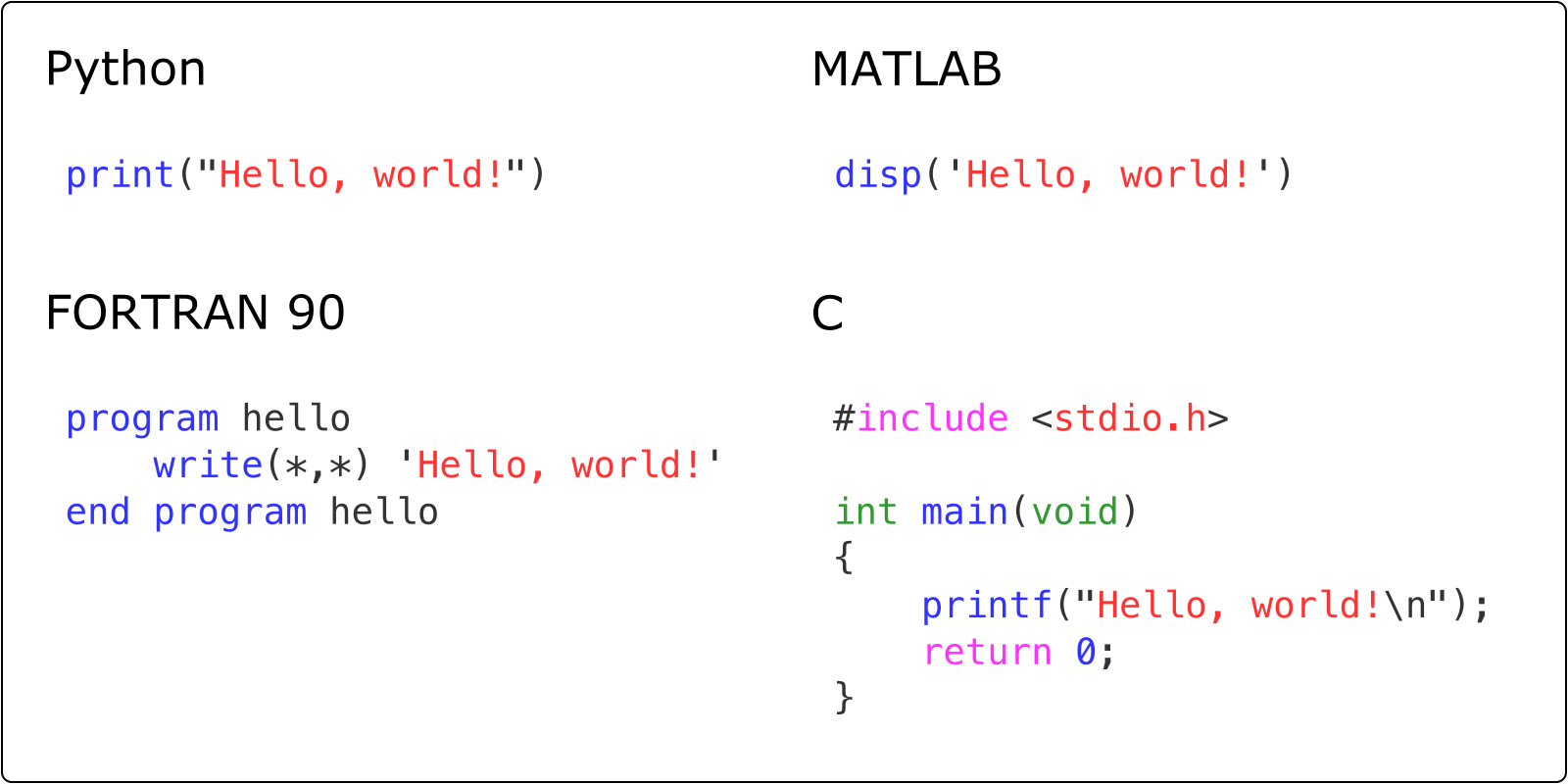
Examples of printing “Hello, world!” in different programming languages. Credit: GeoPython
Why Python fits our goals
Python works well for this course because it:
is readable and close to everyday language, which makes code easier to understand and discuss
is a general-purpose language that supports several styles of programming, for example procedural and object-oriented programming, so you can start simple and grow into more advanced patterns later
is interpreted and interactive, which means you can try out ideas in small steps, see results immediately, and learn by experimentation rather than long compile cycles
is dynamically typed, so you can write code quickly without declaring data types up front, while still working with clear and predictable values
has a rich ecosystem of scientific and geospatial libraries for working with tables, arrays, rasters, time series, and vector data
integrates well with GIS and remote sensing tools, including QGIS and other spatial software that provide a Python console
is free and open source, with a large community, extensive documentation, and many examples you can reuse and adapt
In practice, this means you can focus on questions and workflows, not on low-level technical details.
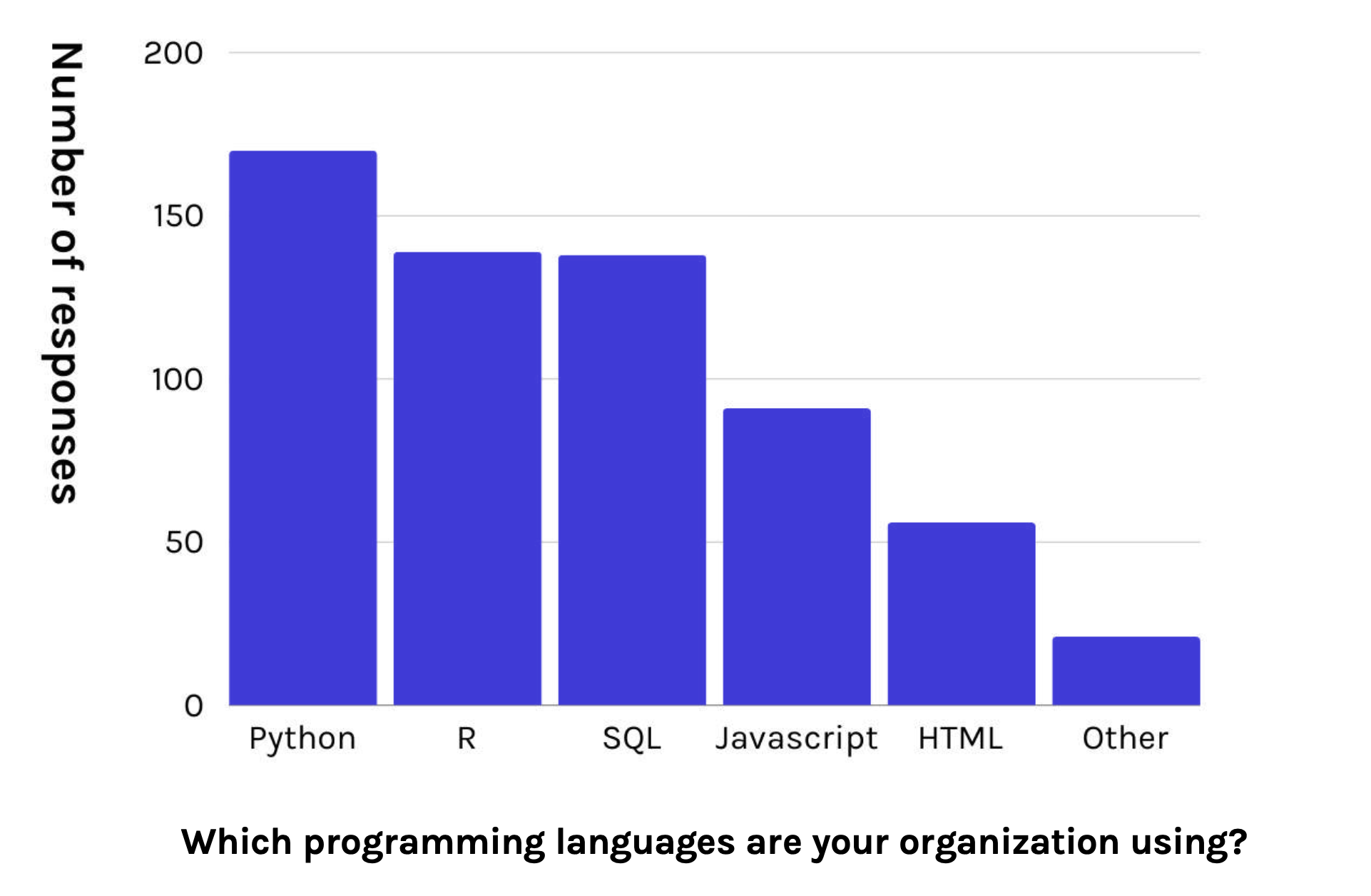
Figure showing the most popular programming languages from the survey on The State of Spatial Data Science - 2024. Credit: Carto
What this means for you
You do not need to know any of these technical terms now. What matters is:
Python is widely used in science and industry
it runs on all major operating systems
it is a good long-term investment for your studies and beyond
3. Ways to run Python code
There is more than one way to write and run Python code. Each option has its strengths, and you will encounter several during your studies.
In this course, we mainly use notebooks, but it helps to know what else exists.
Scripts
Python scripts are plain text files with the file extension .py.
They are well suited for:
programs that run for a long time
tasks you want to repeat in the same way
automation on servers or as scheduled jobs
To run a script, you typically call Python from your Integrated Development Environment, a Terminal, or from a Python interpreter.
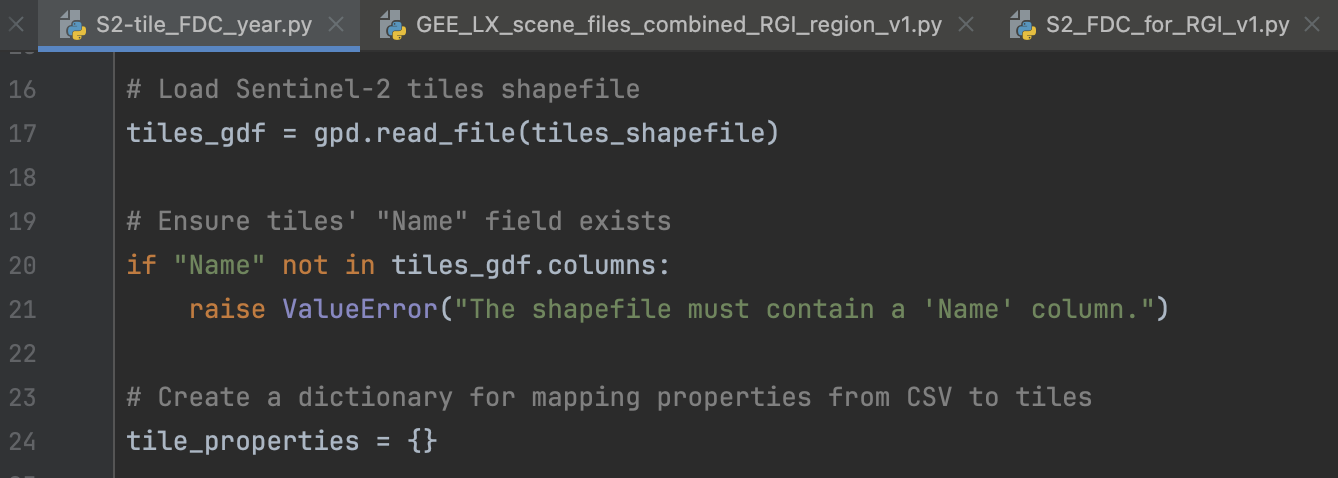
Example of a Python script file.
Scripts are common in software development and production systems. For learning and exploration, they can feel less transparent, because the explanation, results, and code often live in separate places.
Notebooks
Jupyter notebooks combine several elements in a single interactive document:
formatted text and equations
figures and tables
intermediate and final results
Notebook files have the extension .ipynb. They are divided into cells. Each cell has a specific purpose:
Code cells contain executable Python code.
Markdown cells contain formatted text written in Markdown.
You run the notebook in a web browser, while a Jupyter server executes the code in the background. The server can run on your computer or on a remote machine.
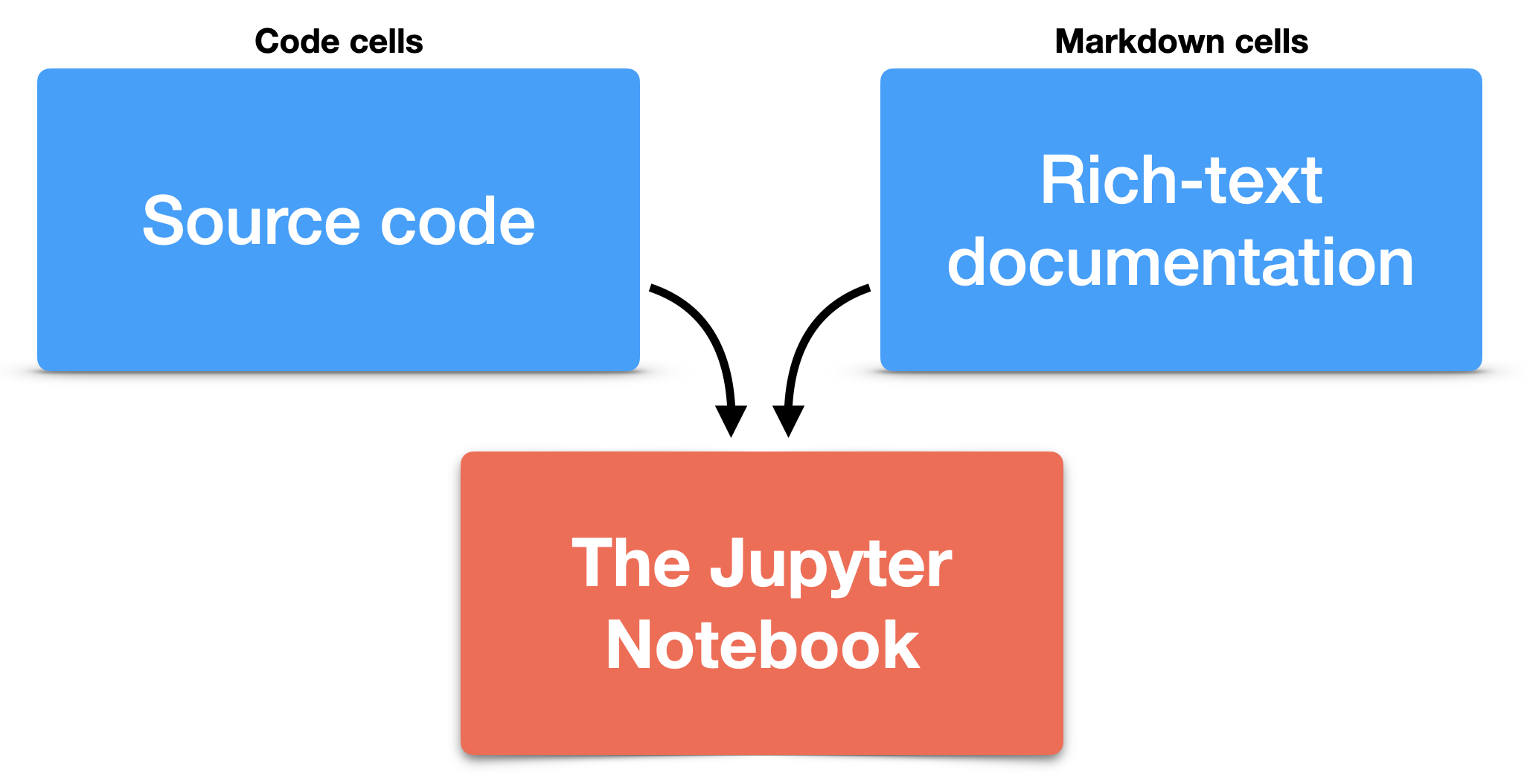
Elements of a Jupyter Notebook. Credit: GeoPython
This capability of combining code and documentation makes notebooks ideal for:
learning new concepts step by step
interactive data exploration
documenting analysis decisions
You can read the explanation, run the code below it, and immediately see the output. If something is unclear, you can change one line at a time and observe what happens.
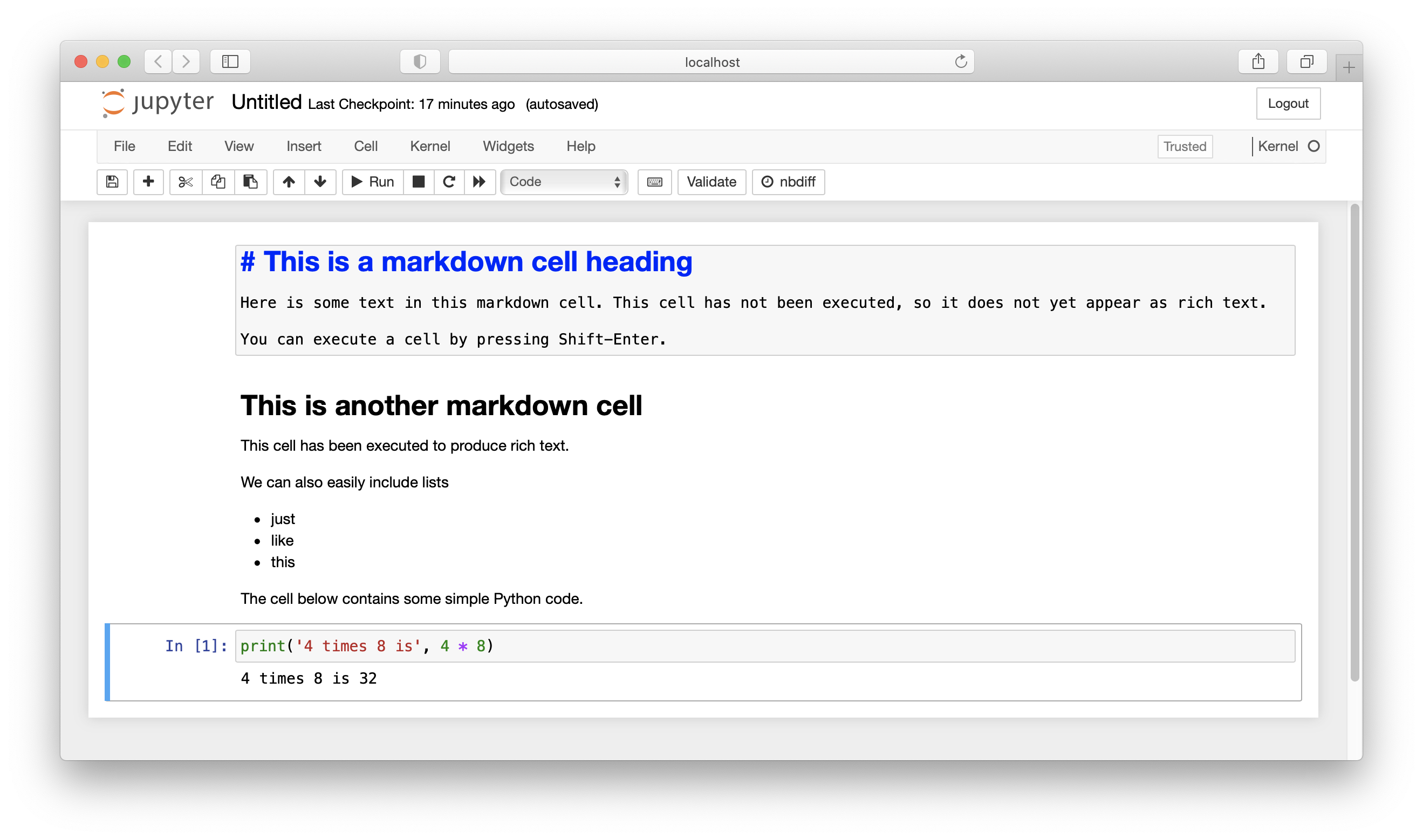
An example Jupyter Notebook. Credit: GeoPython
In summary, notebooks enable you to document your process, display your code and results, and interpret your output, all within a single document. This makes them especially powerful for data science. A notebook can describe a complete workflow, from the initial data to the final findings. Because all steps are visible and executable, others can reproduce your work. This transparency is an important part of modern scientific practice.
Integrated Development Environments (IDEs)
An Integrated Development Environment (IDE) is a software application designed to help you write and manage code more efficiently.
Compared to the simple Python interpreter, IDEs provide many tools in one place, such as:
a code editor
a file browser
debugging tools
error highlighting
version control integration
IDEs can look complex at first, but they can also be very helpful. Many IDEs highlight syntax errors immediately and suggest fixes, which makes it easier to learn and debug your code.
Several popular IDEs are used for Python:
Visual Studio Code (VS Code)
A flexible code editor that becomes a full IDE through extensions. It supports many programming languages, including Python. This is the environment we recommend in this course.JupyterLab
A browser-based environment designed for working with notebooks. It combines a file browser, notebook interface, Python console, and terminal in one workspace.PyCharm
A powerful IDE designed specifically for Python. It provides advanced tools for larger software projects and professional development.
You do not need to master an IDE right away. In this course, we focus on Visual Studio Code as a baseline. We encourage you to explore its advanced tools throughout the semester, so you benefit from them when you start with your projects. As an alternative, you can also start with JupyterLab to gain a basic understanding of how to work with notebooks. At this early stage, the focus is learning how to think in code, not mastering development tools.
4. Jupyter in this course
Jupyter is the system that allows notebooks to run in a web browser.
From your perspective, you open a notebook in a tab, write code in cells, and run them. In the background, a Jupyter server executes the Python code and sends the results back to your browser. That server can run:
on your own computer, for example when you start JupyterLab locally
on a university or research server, which you access remotely
in a cloud service, such as Google Colab, which provides a managed notebook environment
In all cases, the experience in the browser is very similar.
JupyterLab
JupyterLab is a simple interface to write, edit and run notebooks.
It is a browser-based environment where you can:
browse and manage files in your project
open notebooks in tabs for code and text
use a Python console for quick experiments
open terminals or text editors when needed
When you start JupyterLab, it opens in a browser window and shows these components in a single workspace.
How to start JupyterLab
If you installed Miniconda, the typical workflow looks like this:
Open a terminal
Navigate to your working directory, for example:
cd path/to/your/project-folderCreate and activate your environment after you have installed Conda:
conda create -n my-env python=3.12
conda activate my-env
Install and start JupyterLab
conda install --channel conda-forge jupyterlab
jupyter lab
Your browser will open automatically. JupyterLab will show the contents of the folder from which you started it.
How to stop JupyterLab
When you are finished:
Go back to the terminal where JupyterLab is running.
Press:
Control + CConfirm with
yif prompted.
Then optionally deactivate the environment:
conda deactivateThe Jupyter server will stop, and the browser tab can be closed.
Jupyter Notebook vs JupyterLab
Both Jupyter Notebook and JupyterLab are tools from Project Jupyter.
Both allow you to create and run notebook files (.ipynb).
The difference lies in the interface and capabilities.
Jupyter Notebook (classic interface)
The classic Jupyter Notebook provides:
one notebook per browser tab
a simple, linear interface
basic menu and toolbar
limited layout flexibility
It is:
easy to understand
minimal and lightweight
suitable for small projects or beginners
You mainly work inside a single notebook at a time.
JupyterLab (modern interface)
JupyterLab is the more advanced and flexible environment.
It provides:
multiple notebooks in tabs
a file browser
terminals
text editors
a Python console
drag-and-drop layout
It feels more like a full development environment inside the browser.
You can:
open several notebooks side by side
inspect data in a console
edit scripts and notebooks in the same workspace
manage files without leaving the interface
Key differences at a glance
| Feature | Jupyter Notebook | JupyterLab |
|---|---|---|
| Interface style | Single document | Multi-tab workspace |
| File browser | Separate page | Built-in panel |
| Terminal access | No | Yes |
| Layout flexibility | Limited | Flexible |
| Best for | Simple workflows | Small projects |
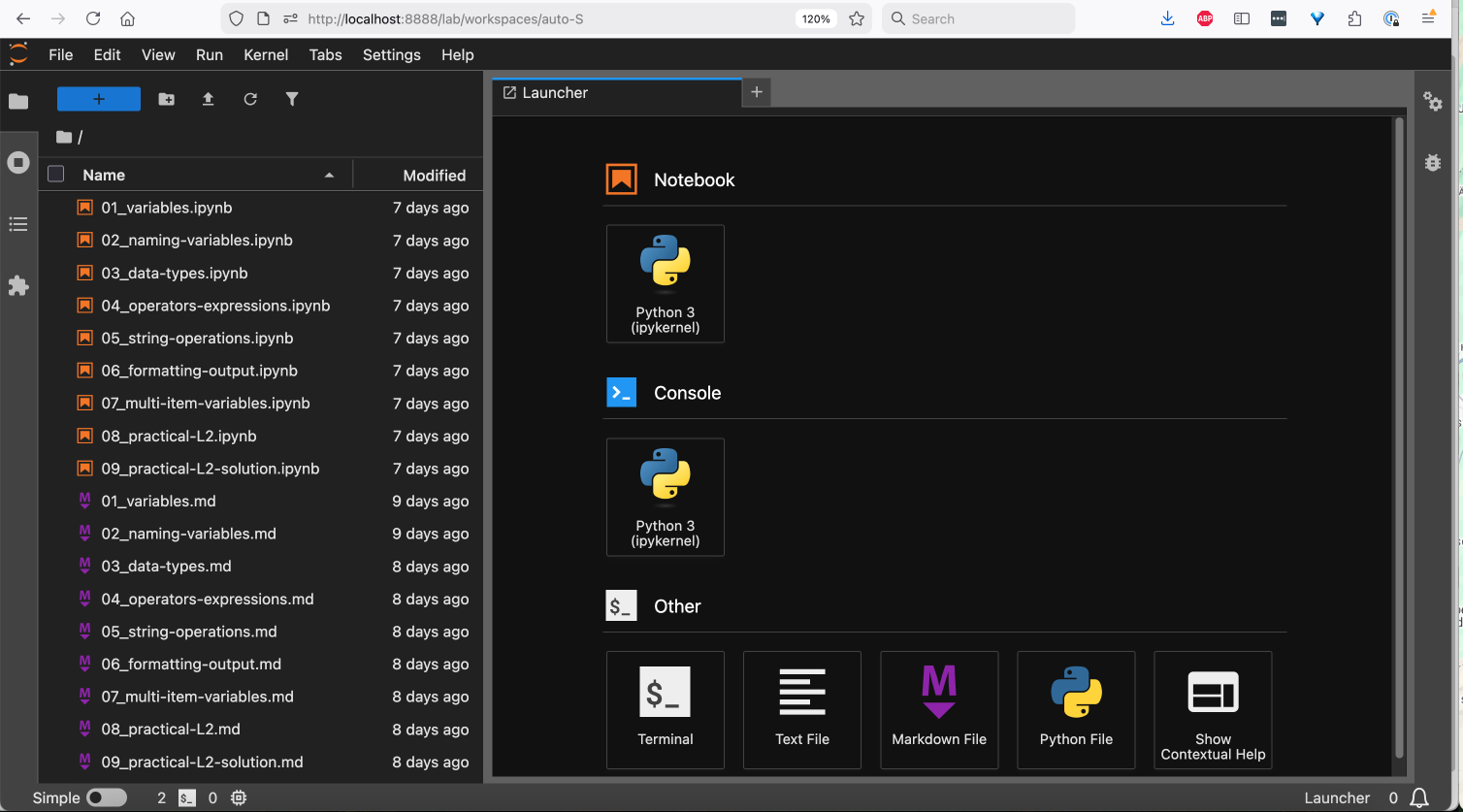
The JupyterLab starting window
5. Summary
In this chapter, you learned how ideas become executable code.
You now understand that:
Programming means designing precise steps that a computer can execute
Coding is the act of expressing those steps in a programming language
Python is our language of choice because it is readable, widely used, and powerful for scientific and spatial data work
Scripts and notebooks are two different ways to run Python code
VS Code / JupyterLab is the environment we use to combine code, explanation, and results in one place
Most importantly, you should understand that programming in this course is not about building large software systems. It is about:
expressing logic step by step
making analysis reproducible
turning data into insight
Looking ahead
In the next chapter, we move from concepts to structure and learn the basic rules that make Python code valid and readable. The aim is to write Python that the computer can understand. Here, small details matter:
names are case sensitive
quotes must match
indentation defines structure
In the next chapter, you will learn the core rules of Python syntax.
These rules are about writing code that is clear, consistent, and easy to debug.
Once you understand the syntax, you can start turning ideas into working programs.