
Chapter Relevance
Lab Relevance: ★★★ (Slicing, filtering, and sorting are the absolute bread and butter of Pandas lab assignments)
Project Relevance: ★★★ (Required for isolating relevant subsets of data in any analytical pipeline)
Foundation: ★★★ (Core Pandas mechanics that replace standard Python loops and if statements)
Time to Read: 15 minutes
In a nutshell: Master the core Pandas operations to select columns, filter rows with logical conditions, and safely modify data without triggering the notorious view vs. copy trap.
Skip this if: You already know how to use boolean masks, &/| operators, .sort_values(), .loc/.iloc, and fully understand when to use .copy().
In the previous section, we successfully loaded the kloten
import pandas as pd

# Load the Kloten summer weather data, skipping metadata
data = pd.read_csv("data/kloten_summer_2022.txt", skiprows=10)
1. Selecting Columns
When performing data analysis, you rarely need every variable in your dataset. You can extract specific columns by placing the column name inside square brackets next to your DataFrame variable.
To extract a single column, pass the name as a string. This returns a one dimensional Series.
# Extract a single column
max_temps = data["MAX"]

# Prove it is a Series
print(type(max_temps))

# Look at the first 3 rows
max_temps.head(3)
<class 'pandas.Series'>
0    19.6
1    21.8
2     NaN
Name: MAX, dtype: float64To extract multiple columns, you must pass a list of column names inside the square brackets. This means you will see double brackets [[ ]].
The outer brackets tell Pandas you are making a selection:
data[ ... ]The inner brackets define the Python list of strings:
["YEARMODA", "MAX", "MIN"]
Extracting multiple columns returns a smaller DataFrame, rather than a Series.
# Extract multiple columns
subset = data[["YEARMODA", "MAX", "MIN"]]

# Prove it is a DataFrame
print(type(subset))

display(subset.head(3))
<class 'pandas.DataFrame'>
“Note: We use the display() function here to explicitly print the DataFrame as a cleanly formatted HTML table in our notebook.”
2. Filtering Rows
Selecting columns is easy, but how do we select specific rows? In pure Python, you would use an if statement to check each row one by one. In Pandas, we use a concept called Boolean indexing to ask the entire dataset a True or False question simultaneously.
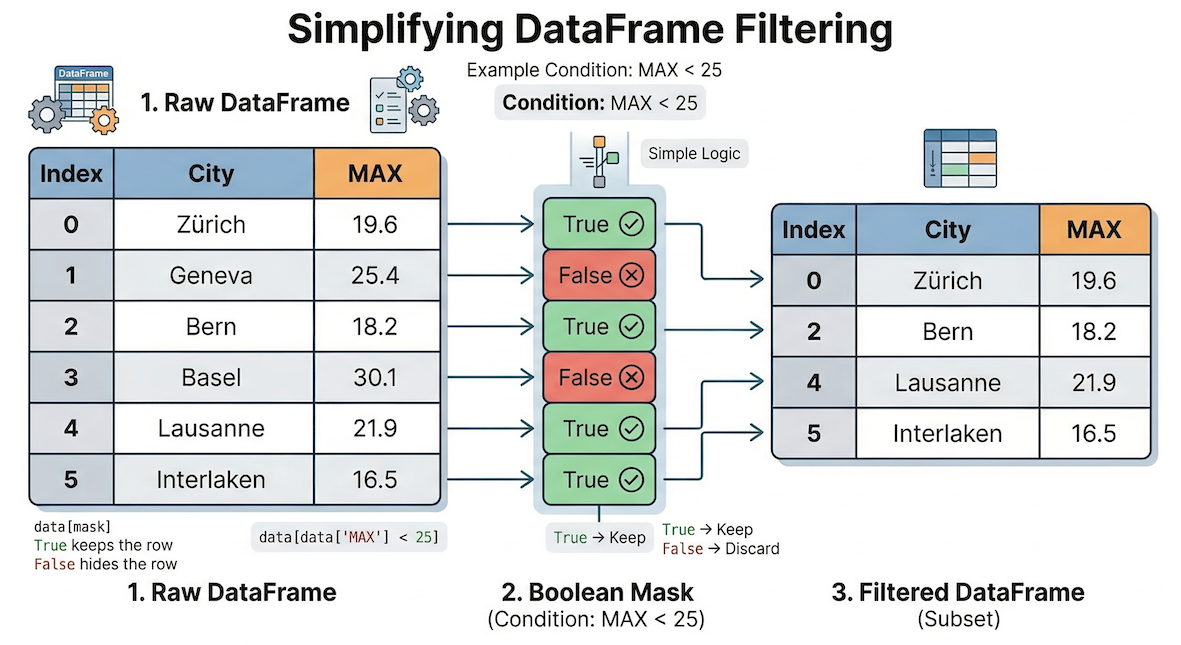
Boolean indexing conceptually acts as a filter. The mask of True/False values determines exactly which rows from the original DataFrame are allowed to pass through into your new subset.
First, we ask the question. Let us find out which days had a maximum temperature greater than 30 degrees Celsius:
# Ask the question (creates a boolean mask)
data["MAX"] > 30
0     False
1     False
2     False
3     False
4     False
      ...
87    False
88    False
89    False
90    False
91    False
Name: MAX, Length: 92, dtype: bool
This returns a Series of True and False values, often called a mask.
To actually filter the data, we place this conditional mask inside the selection brackets. Pandas will keep every row that evaluates to True and hide every row that evaluates to False.
For absolute clarity, here is how you do it in two steps:
# Step 1: Save the mask to a variable
is_hot = data["MAX"] > 30

# Step 2: Pass the mask variable into the brackets
hot_days = data[is_hot]
However, experienced programmers usually combine this into a single line of code by placing the condition directly inside the brackets. Notice how the word data appears twice:
# The standard one-line approach
hot_days = data[data["MAX"] > 30]

display(hot_days.head(3))
Notice the Index on the far left. It jumped from 15 to 18 to 19, preserving the original row labels of the days that met our criteria.
3. Multiple Conditions
Often, you need to filter data using multiple criteria simultaneously. You can combine logical conditions using special operators. Standard Python keywords and and or will not work here, as Pandas needs bitwise operators that perform vectorized logical comparisons on entire Series at once.
Pandas uses these operators:
&(AND): Both conditions must be True.|(OR): At least one condition must be True.
AND Condition Example
Let us find “extreme” summer days that were both very hot (MAX > 30) but also had surprisingly cool mornings (MIN < 14).
# Using & (AND) for logical conditions
extreme_days = data[(data["MAX"] > 30) & (data["MIN"] < 14)]
display(extreme_days)
OR Condition Example
Next, let us find days that were either extremely hot (MAX > 33) OR had very cold mornings (MIN < 10). This query will include days meeting either criteria, or both.
# Using | (OR) logic for extreme temperatures
either_extreme_days = data[(data["MAX"] > 33) | (data["MIN"] < 10)]
display(either_extreme_days)
4. Sorting Data (sort_values)
Once you have isolated your data, you frequently want to order it. The .sort_values() method allows you to sort your DataFrame by one or more columns.
By default, Pandas sorts in ascending order (smallest to largest). To find the absolute hottest days of the summer at the top of our table, we need to set the ascending parameter to False.
# Sort by MAX temperature, descending
sorted_data = data.sort_values(by="MAX", ascending=False)
display(sorted_data.head(3))
5. Copy-on-Write: Why Subsets Behave Safely
When you filter a DataFrame, pandas tries to be efficient with your computer’s memory. In older versions of pandas, this created a confusing situation: sometimes a subset behaved like a view into the original data, and sometimes it behaved like a fully independent copy.
Starting with pandas 3.0, pandas uses Copy-on-Write by default. This means that a subset behaves like an independent object when you modify it. Behind the scenes, pandas may still share memory to save resources, but if you write to the subset, pandas protects the original DataFrame by copying the data when needed.
This makes pandas more predictable than older versions. You can create a filtered subset and add a new column to that subset without worrying that the original DataFrame will silently change.
Let us filter the data for early June and add a new column:
# Create a subset for early June
early_june = data[data["YEARMODA"] < 20220610]

# Add a new column to the subset
early_june["IS_HOT"] = early_june["MAX"] > 25

display(early_june.head())The new column is added to early_june. The original data DataFrame remains unchanged.
# The new column exists in the subset
print("Columns in early_june:")
print(early_june.columns)

print("\nColumns in original data:")
print(data.columns)
Columns in early_june:
Index(['YEARMODA', 'MAX', 'MIN', 'TEMP1', 'TEMP2', 'IS_HOT'], dtype='str')
Columns in original data:
Index(['YEARMODA', 'MAX', 'MIN', 'TEMP1', 'TEMP2'], dtype='str')
Do We Still Need .copy()?
You can still use .copy() when you want to make your intention extra clear:
early_june_copy = data[data["YEARMODA"] < 20220610].copy()
early_june_copy["IS_HOT"] = early_june_copy["MAX"] > 25

display(early_june_copy.head())This is not wrong. It tells readers of your code: “I want this to be an independent object.”
However, in pandas 3.0, .copy() is no longer needed just to avoid the old SettingWithCopyWarning. The old warning existed because pandas could not always clearly tell whether you were modifying a view or a copy. Copy-on-Write removes this ambiguity for everyday use.
The Important Question: What Are You Trying to Change?
When writing pandas code, the most important question is not simply “Do I need a copy?” Instead, ask:
If you create a new object, use a new variable name:
hot_days = data[data["MAX"] > 30]If you want to continue working with this subset, you can modify it:
hot_days["VERY_HOT"] = hot_days["MAX"] > 33

display(hot_days.head())This changes hot_days, not the original data.
If your actual goal is to change the original data DataFrame, we need a more precise selection tool. That tool is introduced in the next section: .loc[].
Concept Check: Separate object or original data?
Imagine you are writing a script to analyze weather patterns.
Scenario A: You filter the dataset to find all days where the maximum temperature exceeded 30°C, just so you can inspect them.
Scenario B: You filter the dataset to create a separate hot_days table and add a new column only to that table.
Scenario C: You want to add a new column to the original data DataFrame marking which days were hot.
Which scenario requires a more precise assignment method introduced in the next section?
A) Scenario A
B) Scenario B
C) Scenario C
Check your understanding
Answer: C
In Scenario A, you are only reading a subset.
In Scenario B, you are creating and modifying a separate object. With pandas 3.0, Copy-on-Write protects the original DataFrame.
In Scenario C, your goal is to modify the original DataFrame itself. For this, you need a more precise assignment method. That method is introduced in the next section with .loc[].
6. Index based Selection (loc vs iloc)
In the previous section, we saw that filtered subsets can safely be used as separate working objects. But sometimes you do not want to create a separate object. Sometimes you want to select exact rows and columns in the original DataFrame and modify them directly.
For this, pandas provides two powerful indexers: .loc[] and .iloc[].
.loc[](Label-based): Selects data based on its exact label (the name of the index row or the name of the column)..iloc[](Integer position-based): Selects data based on its strict numerical position (0, 1, 2...), exactly like a standard Python list.
![A conceptual diagram showing a Pandas DataFrame with a sorted, non-sequential index. An arrow for .loc[0] points to the specific row labeled '0', while an arrow for .iloc[0] points to the physical top row of the table.](/sds210-jb/build/06_loc_vs_iloc_index-5f52b79213e7881787f0ceae55b40d06.png)
Understanding the difference between label-based (.loc) and position-based (.iloc) indexing. When data is sorted, the physical position (0) no longer matches the original row label (0).
Let us look at the difference. Imagine we sort our data so the hottest day (originally Index 18) is at the very top of the table.
# 1. .iloc looks for the row currently sitting in the very first position (position 0)
print("Result of .iloc[0]:")
print(sorted_data.iloc[0])

print("\n-------------------\n")

# 2. .loc looks for the row literally labeled '0' (which is now deep in the middle of the sorted data)
print("Result of .loc[0]:")
print(sorted_data.loc[0])
Result of .iloc[0]:
YEARMODA    20220619.0
MAX               35.1
MIN               17.1
TEMP1             30.0
TEMP2             34.8
Name: 18, dtype: float64

-------------------

Result of .loc[0]:
YEARMODA    20220601.0
MAX               19.6
MIN               11.1
TEMP1             19.5
TEMP2             15.6
Name: 0, dtype: float64
Notice how .iloc[0] returned the data for the hottest day (labeled 18), while .loc[0] hunted down the specific row labeled 0 (June 1st).
Selecting Rows AND Columns
The true power of these indexers is that you can select rows and columns at the same time by separating them with a comma: [rows, columns].
# Use .loc to get rows labeled 0 through 3, and specifically the "MAX" and "MIN" columns
subset_loc = data.loc[0:3, ["MAX", "MIN"]]
display(subset_loc)
Output of .loc[0:3, [“MAX”, “MIN”]]
| MAX | MIN | |
|---|---|---|
| 0 | 19.6 | 11.1 |
| 1 | 21.8 | 12.3 |
| 2 | NaN | 12.7 |
| 3 | 27.4 | 12.8 |
7. Exercise: Isolate the Target Data
Let us bring all these skills together using the global cities dataset you downloaded in the previous section.
Imagine you are doing an analysis focused solely on major urban centers in Japan. You need to load the data, extract exactly what you need, and secure it in memory.
Tasks:
Load
worldcities.csvinto a DataFrame.Filter the data to include only rows where the
countrycolumn is exactly"Japan".Crucial: Make sure to append
.copy()to create an independent dataset!Sort this new Japan DataFrame by the
populationcolumn in descending order (largest to smallest).Display the top 5 rows, but only show the
cityandpopulationcolumns.
(Hint for Step 5: Remember that selecting multiple columns requires a list inside the selection brackets, which looks like double brackets [[ ]]).
# Write your code here
Sample solution
import pandas as pd

# 1. Load the data
cities_df = pd.read_csv("data/worldcities.csv")

# 2 & 3. Filter for Japan AND create a safe copy
japan_cities = cities_df[cities_df["country"] == "Japan"].copy()

# 4. Sort by population descending
japan_sorted = japan_cities.sort_values(by="population", ascending=False)

# 5. Extract specific columns and show the top 5
top_japan_cities = japan_sorted[["city", "population"]]
display(top_japan_cities.head(5))
Expected Output:
| city | population | |
|---|---|---|
| 0 | Tokyo | 37785000.0 |
| 23 | Ōsaka | 15126000.0 |
| 45 | Nagoya | 9197000.0 |
| 197 | Yokohama | 3757630.0 |
| 366 | Fukuoka | 2286000.0 |
(Note: The exact index numbers on the left might differ slightly depending on the version of the dataset, but the top 5 cities and populations should match!)
8. Summary: Navigating the 2D Grid
In this section, you learned how to slice and dice your data to extract exactly the information you need. You now have the tools to surgically navigate large datasets without relying on manual for loops.
Key takeaways
Columns: Extract a single Series using
df["col"]or a smaller DataFrame using a listdf[["col1", "col2"]].Rows: Use Boolean Indexing (
df[df["col"] == value]) to act as a filter, keeping only rows that meet logical conditions.Conditions: Combine multiple filters using
&(AND) or|(OR), always wrapping each individual condition in parentheses().Sorting: Use
.sort_values(by="col", ascending=False)to order your DataFrame.Safety: With pandas 3.0, filtered subsets behave safely through Copy-on-Write.
Index Selection: Use
.iloc[]to select rows based on their strict numerical position, and.loc[]to select based on exact row/column labels.
What comes next?
Now that you can navigate, slice, and filter your data, you might notice a glaring issue: real-world data is rarely perfect.
If you try to do math on a column where numbers are accidentally stored as text, or if a sensor went offline and left blank gaps in your dataset, your code will crash. In the next section, Cleaning the Mess, we will learn how to standardize messy column headers, fix text strings, and handle the infamous NaN (Not a Number) so your data is pristine and ready for analysis!