
Chapter Relevance
Lab Relevance: ★★☆ (Essential for assigning coordinates and names in Part 1: Single-value variables, but the core logic is basic enough to not be a strict bottleneck.)
Project Relevance: ★★★ (Forms the absolute baseline for storing datasets and parameters across all projects: 1, 2, 3, and 4.)
Foundation: ★★★ (The core programming concept for memory management and state tracking.)
Time to Read: 15 minutes
In a nutshell: Variables are how Python stores data in memory, allowing you to cleanly reuse and update values instead of constantly typing out raw numbers.
Skip this if: You already know how to assign values (x = 10), update them, and understand that variables store independent snapshots rather than active mathematical links.
In this chapter, you will learn how Python uses variables to keep track of values in memory and how those values can be reused and updated throughout a program. You will also see how variables behave in a Jupyter Notebook, why execution order matters, and how small changes to one variable affect (or do not affect) others.
These concepts form the foundation for all later programming tasks in this course, from simple calculations to more complex geospatial workflows.
1. What Is a Variable?
A variable is a way to store a value in memory so that it can be reused later in your code.
You can think of a variable as a label that points to a value stored somewhere in memory.
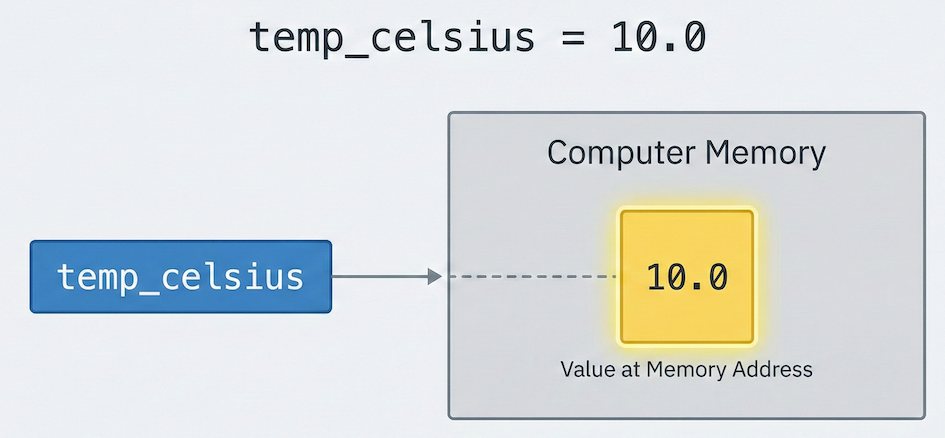
A variable name is a label that points to a value stored in memory.
A variable is not the value itself, and it is not a container that remembers history. It always points to one current value. Once a value is stored, you can use the variable’s name in calculations instead of typing the raw number again and again.
Assigning a Value to a Variable
To create a variable, you use the assignment operator =.
temp_celsius = 10.0
temp_celsiusis the variable name=assigns the value on the right to the name on the left10.0is the stored value
Why Variables Are Useful
Instead of repeating values like 10.0 in multiple places, you can:
give the value a meaningful name
reuse it in calculations
change it later in one place
You will use variables constantly when working with coordinates, distances, and other geospatial values.
2. Seeing Variable Values
In a Jupyter Notebook, you can display the value of a variable simply by writing its name as the last line of a code cell.
temp_celsius
10.0Why does this work? Jupyter Notebooks have a special, convenient behaviour: The output of the last expression in a code cell is displayed automatically.
Using print()
If you want to display multiple things from a single cell, or add formatted text, you must use the print() function explicitly. This works in any Python environment, not just notebooks.
print("Temperature in Celsius:", temp_celsius)
Temperature in Celsius: 10.0
3. Using Variables in Calculations
Once a value is stored in a variable, you can use that variable just like a number in calculations. Let’s convert our temperature from Celsius to Fahrenheit:
print("Temperature in Fahrenheit:", 9 / 5 * temp_celsius + 32)
Temperature in Fahrenheit: 50.0
When this cell is executed, Python looks up the current value stored in temp_celsius (which is 10.0), substitutes it into the math expression, evaluates the calculation, and displays the result.
Variables allow you to reuse values in many different calculations, avoid repeating numbers, and change a value once to update it everywhere it is used.
4. Define Your Own Variable
Let’s pause briefly and try this yourself.
Task:
Define one variable of your choice (e.g., representing a distance, a speed, or a count).
Assign it any numeric value you like.
Display its value in the notebook.
Tip: Use a meaningful variable name formatted in snake_case (words separated by underscores).
# Define and display your variable here
5. Updating Variables
Variables are not fixed. Their values can be changed by assigning a new value to the same variable name. This is called reassignment.
temp_celsius = 17.0
print("Temperature in Celsius is now:", temp_celsius)
Temperature in Celsius is now: 17.0
When this cell is executed, the new value 17.0 is stored in temp_celsius. The previous value (10.0) is replaced and is no longer available.
6. Execution Order and NameError
In a Jupyter Notebook, code cells are executed in the order you run them, not necessarily in the order they appear on the page. Look at the numbers in brackets [ ] next to your cells—they show the execution order.
Let’s see what happens if we try to use a variable that has not been defined yet.
print(5 / 9 * (temp_fahrenheit - 32))
---------------------------------------------------------------------------
NameError                                 Traceback (most recent call last)
Cell In[7], line 1
----> 1 print(5 / 9 * (temp_fahrenheit - 32))

NameError: name 'temp_fahrenheit' is not defined
Running this cell raises a NameError.
Why? Because the variable temp_fahrenheit does not exist yet in memory. Variables are only created after the cell defining them has been executed.
To fix the error, we must first define the variable by running this cell:
temp_fahrenheit = 9 / 5 * temp_celsius + 32
Once this cell has been run, the variable exists in memory, and you can rerun the previous cell successfully.
7. Variables Are Independent
An important and sometimes surprising behaviour in Python is that variables are independent of each other.
Let’s update temp_celsius one more time and inspect both variables together:
temp_celsius = 20.0
print(
    "Temperature in Celsius is now:",
    temp_celsius,
    "and temperature in Fahrenheit is still:",
    temp_fahrenheit,
)
Temperature in Celsius is now: 20.0 and temperature in Fahrenheit is still: 62.6
Even though temp_fahrenheit was originally calculated using temp_celsius, its value does not change when temp_celsius changes!
Why Does This Happen?
Python stores values, not relationships.
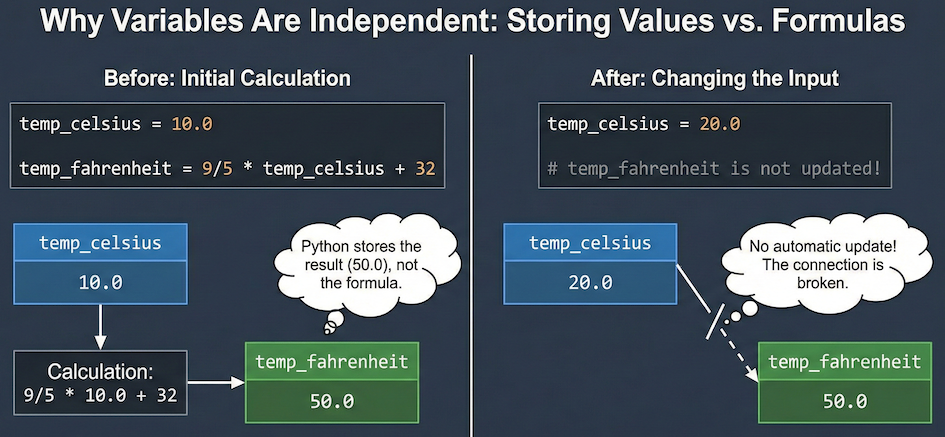
Variables store a snapshot of a value at a specific time. They do not remember the relationship between inputs.
When we defined temp_fahrenheit, Python performed the math right then and stored the final result. It does not remember how that value was computed, only what value was stored. Changing one variable does not trigger automatic updates in others.
If you want dependent values to change, you must recalculate them explicitly by running the calculation cell again.
Interactive Explorer: Variable Independence.
Click the "Run Next Step" button to step through the Python script line by line and watch how the computer's memory updates. Notice that when temp_celsius is updated to 20.0 in the final step, temp_fahrenheit remains completely unaffected at 50.0. This visualizes how variables store independent snapshots of values rather than active mathematical links. For improved visibility of the explorer, follow this link.
Concept Check: The Memory Snapshot
You are running a short spatial script and execute the following three lines of code in order:
x_coordinate = 10
y_coordinate = x_coordinate + 5
x_coordinate = 20
If you print the value of y_coordinate right now, what will Python output?
A) 15
B) 25
C) 10
Check your understanding
Answer: A
Python variables store values, not relationships. When y_coordinate was defined on the second line, x_coordinate was exactly 10, so y_coordinate permanently stored the snapshot value of 15. Updating x_coordinate to 20 later on does not automatically flow backwards and update y_coordinate.
8. Short Exercise
This exercise revises the key ideas from this chapter.
Task
Define a variable called
distance_kmwith a numeric value.Define a second variable
speed_kmh.Compute the travel time in hours and store it in a new variable called
travel_time_hours.Display the result.
Update the value of
speed_kmhand re-run the calculation to see the new travel time.
# Do the exercise here
Try to complete this yourself before checking the example solution below.
Example solution
# 1 & 2. Define the input variables
distance_km = 120
speed_kmh = 60

# 3. Compute travel time and store it
travel_time_hours = distance_km / speed_kmh

# 4. Display the result
print("Initial travel time (hours):", travel_time_hours)

# 5. Update speed and explicitly recalculate
speed_kmh = 80
travel_time_hours = distance_km / speed_kmh

print("New travel time (hours):", travel_time_hours)
Key takeaways:
Reassigning
speed_kmhreplaces its old value.travel_time_hoursdid not update automatically when speed changed; we had to write the calculation again to get the new result.The notebook displays exactly what is currently held in memory based on the order we executed the commands.
9. Summary
After completing this chapter, you should understand that:
Variables store values in memory for later reuse.
Assigning a variable does not produce output.
A variable’s value changes only when it is reassigned.
Execution order matters deeply in Jupyter Notebooks.
Variables are independent; they do not update each other automatically.
These ideas form the foundation for everything that follows in this course.
What Comes Next
So far, we focused on what variables do. Next, we focus on how to name them well.
In the next chapter, you will learn:
why variable names matter for readability and collaboration
what Python allows and disallows in variable names
common naming styles such as
snake_case...